Introduction
At some point in time (actually, I can't remember exactly when), servers in mainland China lost the ability to connect directly to Docker Hub (docker.io). This was undoubtedly a blow to all mainland servers. Fortunately, proxy services have multiplied, so it's not completely unusable.
However, ghcr.io, the Docker image service provided by GitHub that suffers from the same problem as Docker Hub, has very few proxy services. Even when someone does set one up, private repositories remain inaccessible (mostly because you can't log in).
Because two of my projects use ghcr with private repositories, mainland servers couldn't pull them at all, or the pull was painfully slow. This made it impossible to use mainland servers for traffic splitting. I'd been searching for a ghcr proxy solution for a long time, and recently I stumbled upon Harbor, an enterprise-grade private Docker registry, and decided to try setting it up.
EP0: Prerequisites
Server Setup
First, you'll need:
- A server, preferably Linux. Definitely not Windows.
- An SSH client like Termius, Tabby, or XShell (skip this if deploying locally).
- A domain name (recommended). If you're deploying in mainland China and need to use a domain, make sure to complete ICP filing in advance.
Harbor runs on Docker, so you'll need Docker installed on the server first. If your server is in mainland China, you'll also need to configure a proxy in advance, or the later steps will fail. Here are your options:
Download the Installer
Open the Harbor Releases page, and you'll see something like this:
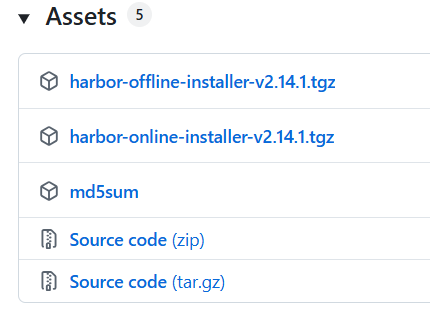
harbor-offline-installer-v<version>.tgz is the offline installer, while harbor-online-installer-v<version>.tgz is the online installer. Deploy using the latest version available.
This tutorial uses the online version. If your server really can't connect to Docker Hub, use the offline version instead. There's no difference in usage between the two; the online installer just pulls images from Docker Hub during deployment, which is lighter and leaves fewer local files.
Download the file to your server and extract it. You'll now have a folder named harbor.
Enter the harbor folder. If you see the following files (and none are missing), you've completed the first step:

All the files
EP1: Configuration
Rename harbor.yml.tmpl to harbor.yml
Copy harbor.yml.tmpl and rename the copy to harbor.yml. Don't just rename the original file directly, to avoid accidentally deleting content and causing serious problems.
cp harbor.yml.tmpl harbor.yml
Change the Passwords
Open harbor.yml:
vim harbor.yml
Find harbor_admin_password:

Change Harbor12345 to something else. Memorize this string — it will be the initial password for the Admin account when you log into the web console later.
Also, I recommend changing database.password to another string (as shown below). This will be the access password for the database Harbor deploys, but you don't need to remember it.

Change the Access Address
At the top of harbor.yml, find hostname:
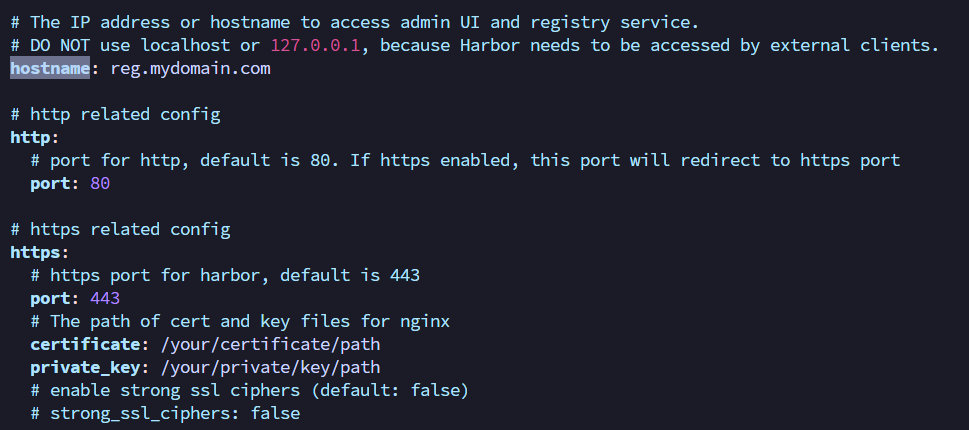
Change hostname to your actual access address. It doesn't have to be a domain name; your server's IP works too.
Configure the Ports
Depending on your situation, there are generally three scenarios:
Save harbor.yml
After completing the configuration above, press esc, type :wq, and your changes to harbor.yml are saved.
EP2: Run the Installation Script
Run the following command:
bash install.sh
The installation process will begin.
When you see Harbor has been installed and started successfully., the installation is complete.
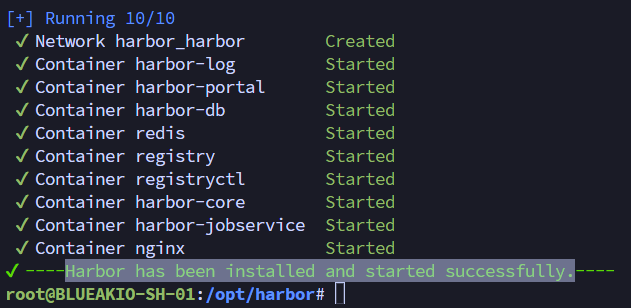
The entire service is now up and running.
EP4: Access the Web Interface
I can't count the number between 2 and 4
Open your browser and visit your Harbor instance using the hostname and port you configured.
You'll see a page like this:
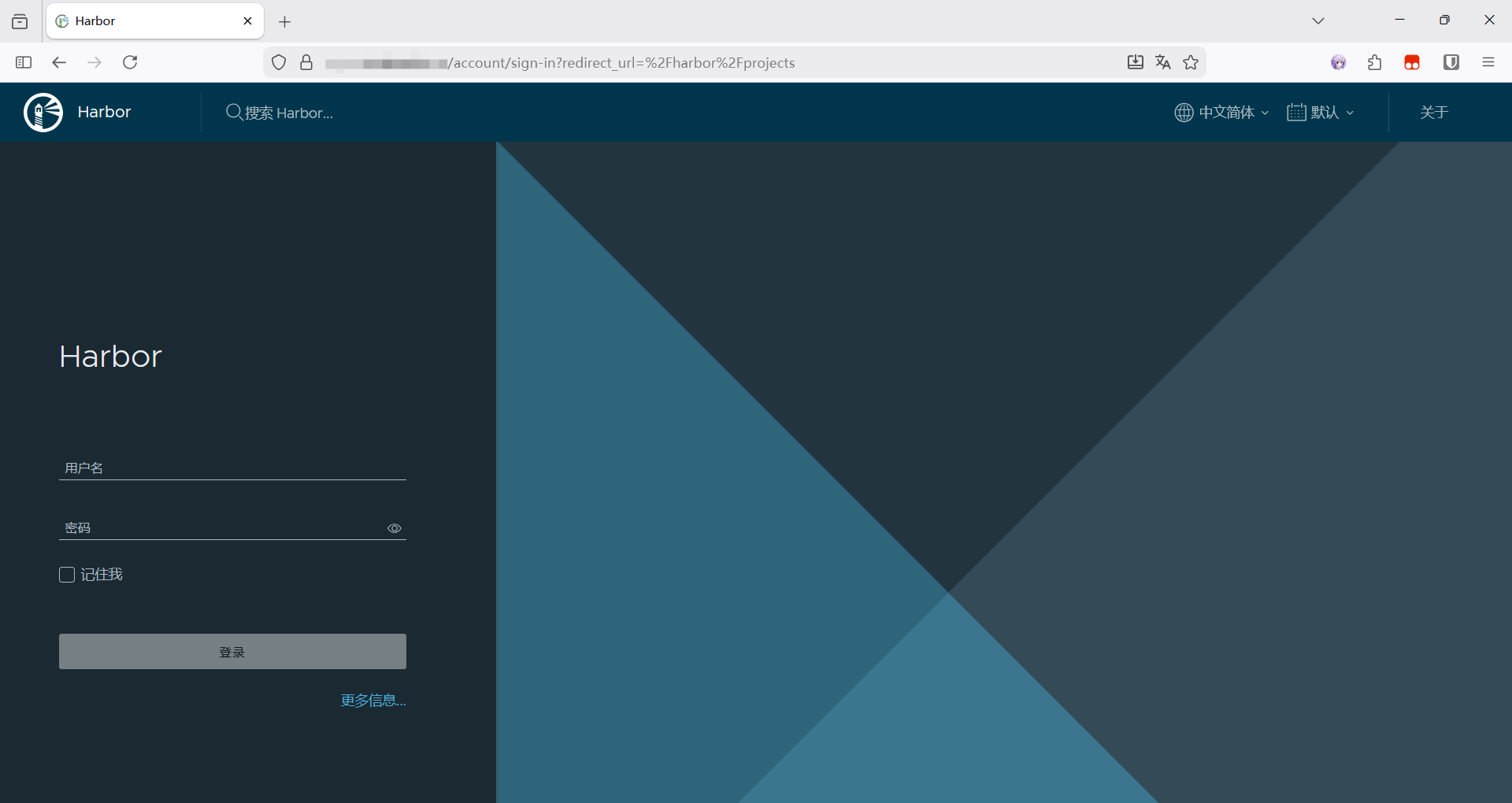
Log in. The initial (Admin) account username is admin, and the password is the harbor_admin_password you set earlier.
After logging in, you'll see a page like this:
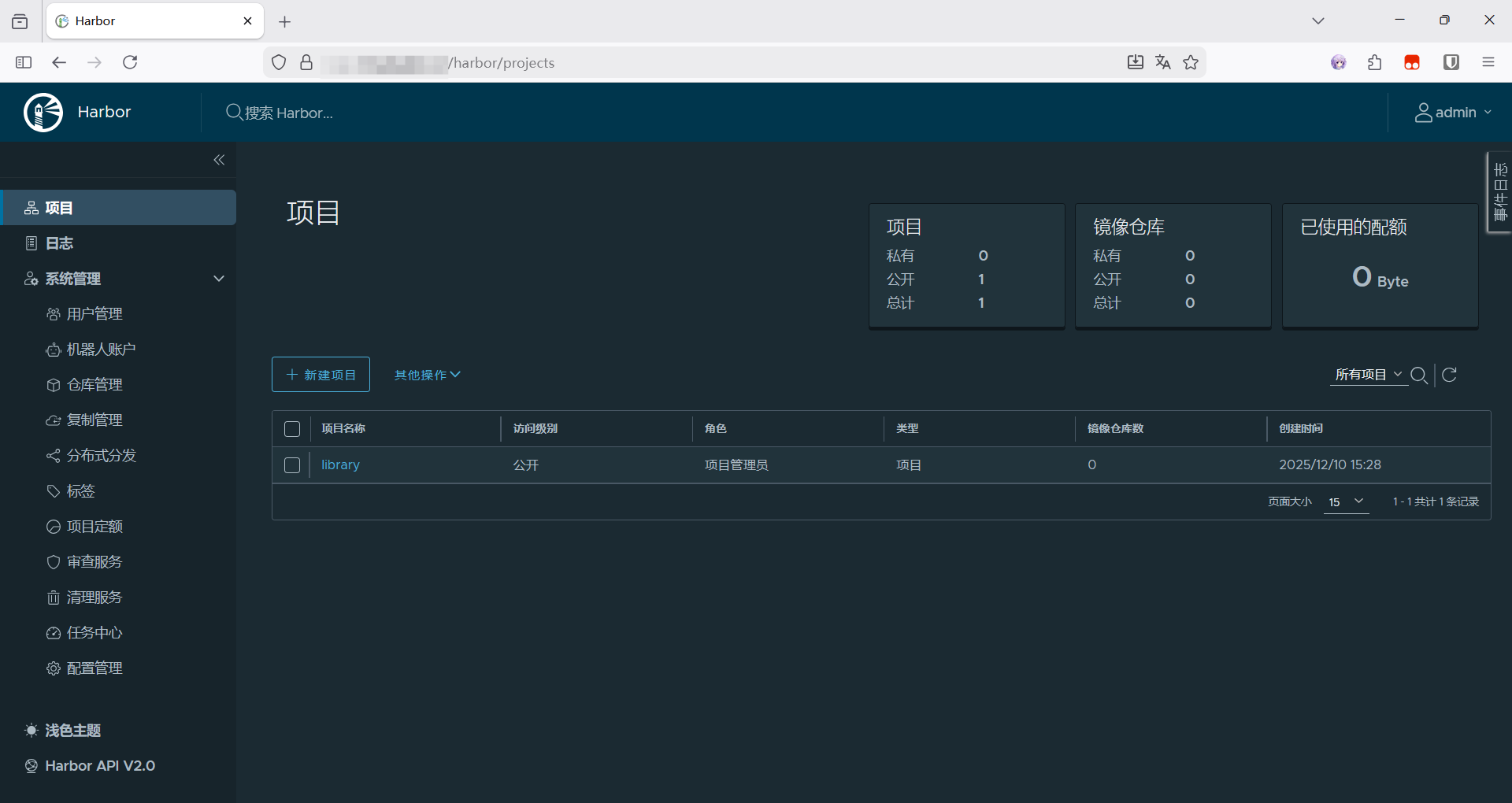
At this point, you can be sure the entire Harbor service is running properly.
EP5: Security Measures
Change the Admin Account Password
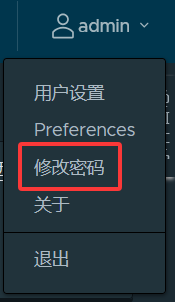
Even though you changed the default password in harbor.yml, it's still a good idea to change it again from the web interface for security.
Click the user icon in the top-right corner, then click Change Password, and fill in all the required fields in the dialog that appears.
Create a New User
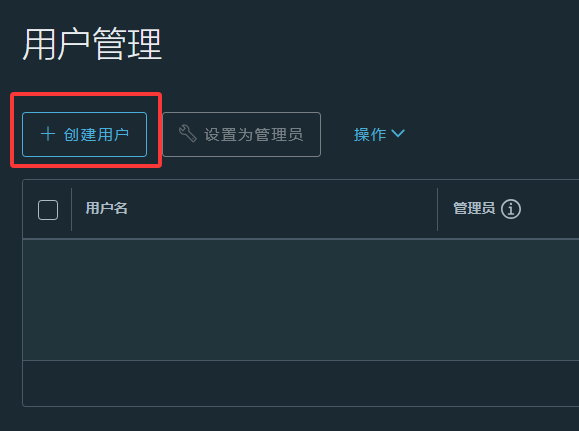
While creating a new user isn't strictly necessary, I still recommend it for security — create a dedicated user for logging in from Docker.
Click User Management on the left, then click Create User, and fill in all the required fields in the dialog that appears.
EP6: Logging in from Docker
Run the following command:
docker login <hostname>:<port>
You'll be prompted for input interactively:

First enter Username (the username you set when creating the user), press Enter, then enter Password (the password you set when creating the user — note that nothing will be displayed as you type), and press Enter.
If the credentials are correct, you'll see the following:
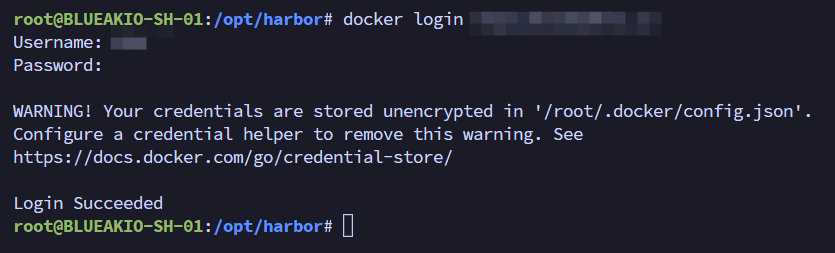
Your server is now connected to your Harbor instance, and all pushes and pulls (including private repositories) work without a hitch.
EP-S-1: Configure the Proxy
Link to Other Services
After logging into your Harbor web interface, click Registry on the left, then click New Endpoint.
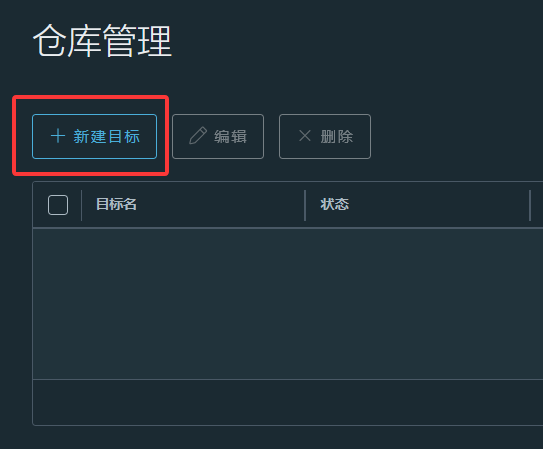
A New Endpoint window will pop up.
Adjust the Provider dropdown — you'll see 12 options.
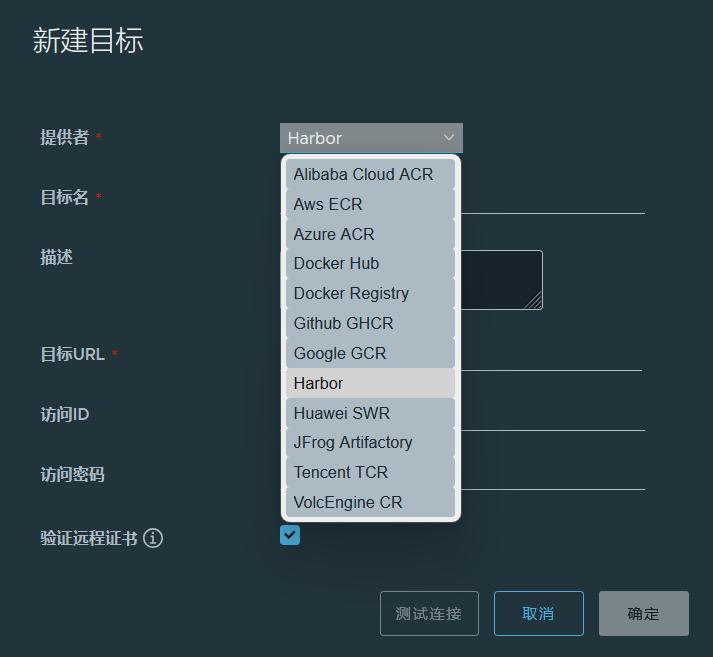
If you choose harbor or Docker Registry, you'll need to fill in the address of the corresponding service (the Endpoint URL). For any other option, you don't need to fill in a service address.
Let's use GitHub GHCR as an example (not Google GCR — look carefully, their addresses differ by just one letter).
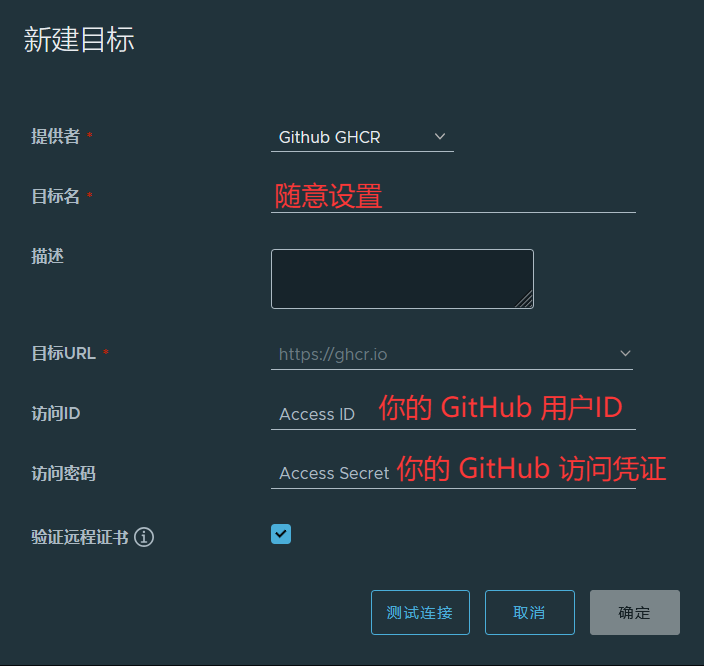
(For information on obtaining GitHub access credentials, visit https://github.com/settings/tokens.)
Once configured, click OK.
Set Up a Project
What is a "project"? In Harbor, a project is like a separate storage space that points to where images are stored. Access control (i.e., whether images are public or private) is determined per project, not per image — this is different from many Docker cloud services.
Click Projects on the left, then click New Project.
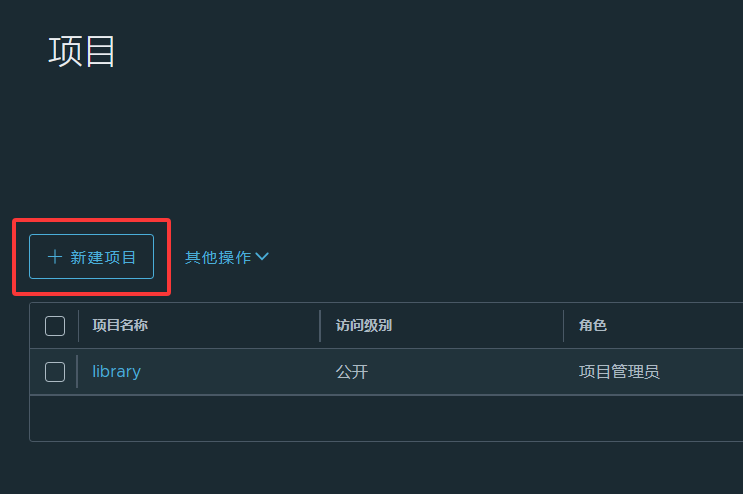
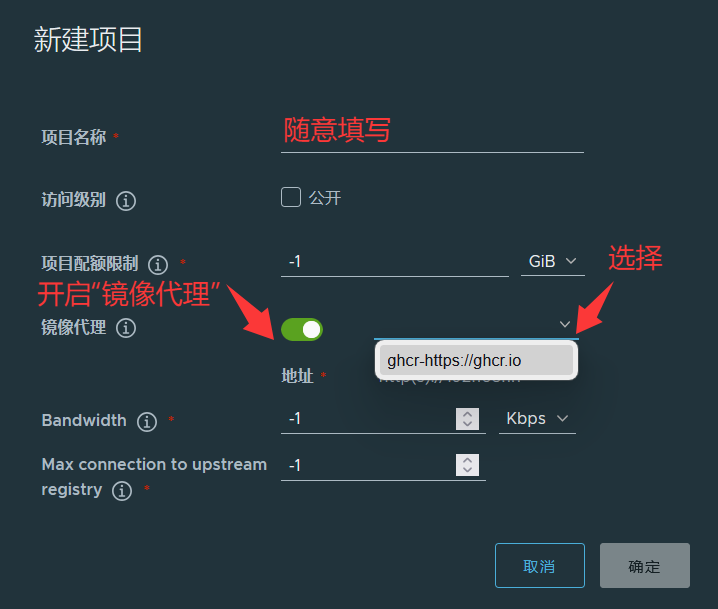
Then click OK, and the project is set up.
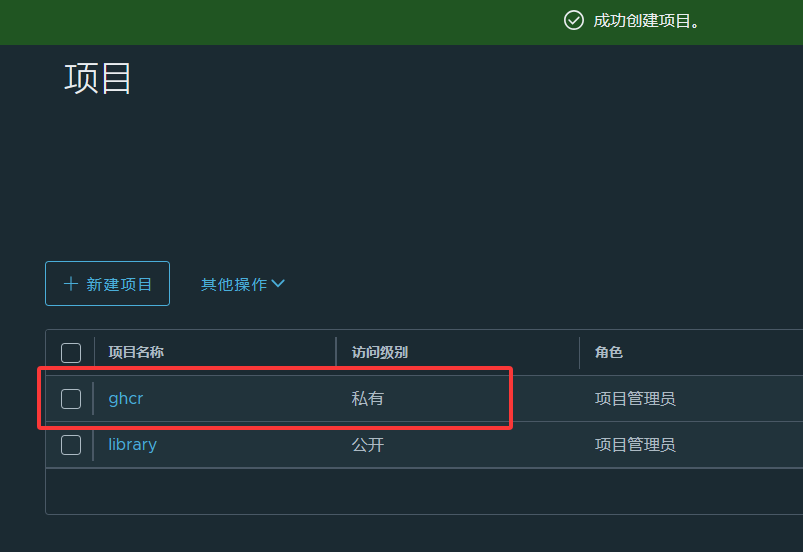
END: Pulling Images
Using ghcr.io and the project name ghcr from the example above, suppose the original address is:
ghcr.io/NiuBoss123/114514:latest
After going through the Harbor proxy, the address becomes:
<hostname>:<port>/ghcr/NiuBoss123/114514:latest
In other words, replace ghcr.io with <hostname>:<port>/ghcr.
Everything else works exactly the same as with the original address.
Afterword
Is it overkill to set up Harbor just for a proxy? Personally, I do think it's quite overkill which is my way of saying I just wanted to tinker
Some might ask why not just use Docker Registry. But that's essentially just a storage repository — no web console, no proxy feature, and you'd have to push images to it yourself. That sounds like a hassle (though using Harbor is just as much of a hassle, to be fair — it's just that Harbor is a bit more elegant is it really?
Related Links
- Harbor official site: goharbor.io
- Harbor GitHub repository: goharbor/harbor
(No domain names were harmed in the writing of this tutorial.)